View employee request details
You can view the details of employee requests, their updated schedules, and the history of actions related to the request activity Core component of both schedules and time records in Workforce Management (WFM). When an employee performs any kind of work, activities specify the scheduled work and capture employee adherence to their schedule..
Procedure
-
Select an existing request.
The details pane slides open for the request, displaying a Details, Schedule, and History tab.
-
Select the Details tab. Click the tabs to expand and collapse them.
The Validations display the status and indicate the number of validations for the request.
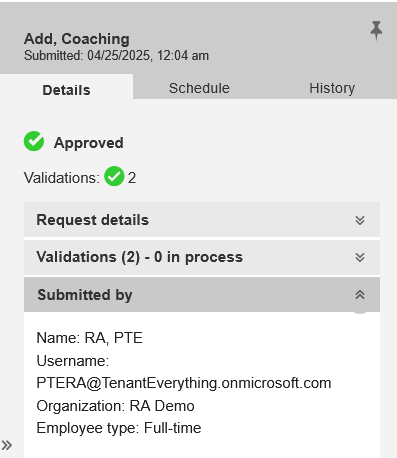
The system displays details about the request, including the status, action, activity, requested start and end time, list of attendees if selected for calendar events, and description. It also displays whether the event for the request is paid (for non-working shift Work period in WFM that has a definite length. events). There are also Approve request and Deny request icons for the request.
Submitted by provides the details of the submitter, such as Username, Organization, Supervisor, and Team Lead.
-
Select the Schedule tab.
The system displays the schedule for the selected date in list view. To view the schedule for up to seven days before the selected date, scroll upwards. To view the schedule for up to seven days after the selected date, scroll downwards. For days that span multiple days, the start time is displayed on the date when the event starts, the end time is displayed on the date when it ends.
-
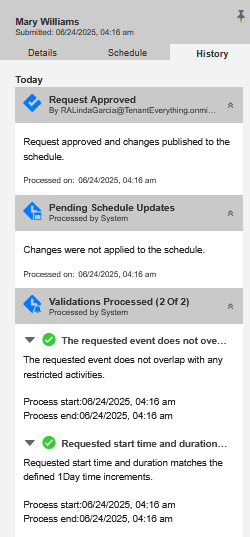
Select the History tab. The History displays the following details:
-
Actions performed on requests - Includes action, role that performed the action, and the time along with any comments. The actions include Request submission, Request approval, and Request denial.
-
Status changes - Displays status changes of the request, such as Pending processing alerts, Pending, Under review, Pending with new alerts, Pending schedule updates, Denied, Approved, Expired (For all status we have an associated expired status) - along with the time when the change happened and associated user who performed the action, if applicable.
-
Validation results - Displays the time they are processed including short text and long text.
-