Assign a competency requirement to selected organizations, groups, or individuals
The competency rank a student achieves is based on lesson, evaluation Form used to review employee performance for a specific interaction, which evaluates proficiency in handling interactions and delivering services to a customer., and KPI scores achieved by a student. Each rank is associated with a particular score.
|
Score |
Value |
|---|---|
|
Excellent |
100 |
|
Good |
80 |
|
Average |
60 |
|
Poor |
40 |
|
Bad |
20 |
Competency ranks and the scores associated with them are set using the suite’s App Admin module. For details on setting competency rankings, see Create competencies and competency mappings.
-
Go to eLearning Product that provides hard and soft skills training, applicable for the entire employee life cycle (before, during, and after the hiring process), and includes training assessment and design tools.. Under Competency Requirements select one of the following:
-
Organizations
-
Groups
-
Employees
If you select Employees, you can open a filtered view of the employees listed on the left pane, or create new filters to narrow the selection of employees. For information on filtering, see Filter information about organization members.
The list on the left pane refreshes and, based on the tab you clicked, shows either the organization tree, group names, or the names of individuals (either those who belong to the whole organizational hierarchy Hierarchy set up by administrators (via the EM) that is structured according to the managerial and employee hierarchy in the company. or those in the filtered view you selected).
-
-
From the list on the left pane, select the name of an organization, group, or person, and then at the bottom of the right pane, click Create Requirements.
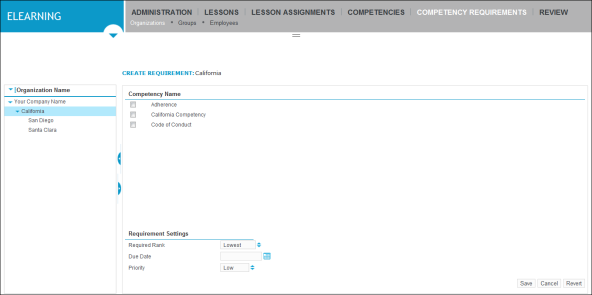
The right pane refreshes, and the Create Requirement page opens.
-
In the Competency Name area, select the boxes beside the competencies you want to assign to the selected organization, group, or person.
-
In the Requirement Settings area, do the following:
-
Click the arrow icon
 beside the Required Rank box, and then select the rank required to achieve the competency.
 -
Click the calendar icon
 beside the Due Date box, and select the month, day and year by which the competency is due.
 -
Click the arrow icon
beside the Priority box, and select one of the priority options for the competency assignment, such as Low.
-
-
Click Save.
The right pane refreshes, and shows the list of competency assignments to the organization, group, or person.
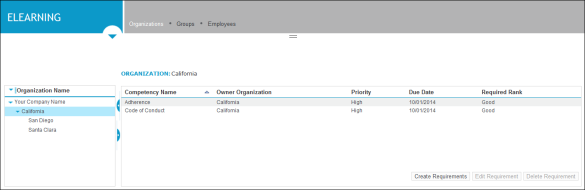
The competency assignment list displayed once you save the assignment varies slightly, based on whether you assigned the competency assignment to an organization, group or individual. However the information shown includes some or all of the following:
-
Competency Name: the name of the assigned competency
-
Assigned Organization: the organization with which it is associated
-
Assigned Group: the group with which it is associated
-
Priority: the priority of the competency assignment
-
Due Date: the date by which the competency is due
-
Required Rank: the rank required to successfully achieve the competency
-