About the Gadget Details page
Use this page to create a new KPI Gadget Utility supported by Scorecards that provides users with KPIs on their desktops. or edit an existing KPI Gadget.
The left pane lists the available organizations. Gadgets are organized by organization.
The first organization is the root organization. It is always listed first regardless of the name. Underneath the root organization, sub-organizations are listed in a hierarchy or tree structure. All sub-organizations are listed in alphabetical order within their branch.
The right pane provides a form for defining a KPI gadget for the selected organization.
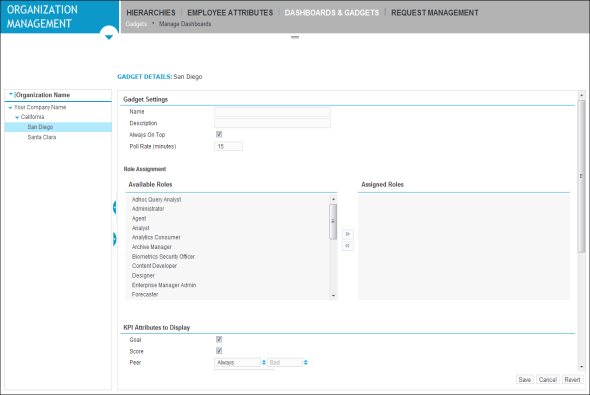
The following table describes the fields on the Gadget Details page.
|
Field |
Description |
|---|---|
|
Gadget Settings |
|
|
Name |
Unique, brief name to identify the gadget. |
|
Description |
Description to further identify the gadget. |
|
Always on Top |
Determines the placement of the gadget when visual objects (such as windows, web pages) overlap on the computer screen. When selected (checked), the gadget always appears on top of other visual objects. When clear (not checked), the gadget always appears underneath other visual objects. |
|
Poll Rate (Minutes) |
Specifies how often the KPI Gadget client polls the application server for data. If system performance is an issue, this number can be increased. NOTE: This data is stored in the server’s cache. IMPORTANT: The frequency of Intraday KPI calculations determines the availability of updated Intraday KPI data on the server. Intraday KPI calculations occur based on the Intraday Interval Length setting. To have the latest Intraday KPI calculation data available on the application server for the gadget client, the Poll Rate setting and the Intraday Interval Length setting should match. Example: When the Intraday Interval Length is 60, the KPI Gadget Poll Rate should be 60. If these settings are out of sync, you could either:
To check the Intraday Interval Length: Go to System Management Module that allows performing suite-wide system management activities from a single, Web-based application, the Enterprise Manager.. Under General Settings, click General. In the Scorecards Product that assists agents, supervisors and all contact center employees to focus on critical aspects of their performance and identify opportunities for improvement. section, locate Intraday Interval Length. Default: 15 (Minutes) |
|
Role Assignment |
|
|
Available Roles |
Lists the employee roles that are available to be assigned to the KPI Gadget for this organization. Use the >> arrows to move employee roles to the Assigned Roles box. |
|
Assigned Roles |
Lists the employee roles that are assigned to the KPI Gadget. Use the << arrows to move employee roles to the Available Roles box. The KPI Gadget is available to the assigned roles in the organization (when privileges are setup correctly). |
|
KPI Attributes to Display |
|
|
Goal |
When selected (checked), the KPI goal is displayed when the KPI Gadget is in the detailed size and when the KPI History graph is shown. |
|
Score (icon) |
When selected (checked), the score icon is displayed. |
|
Peer |
Specifies when peer benchmarking is displayed. When the KPI Gadget is the detailed size (expanded), the Peer information is displayed near the bottom of the gadget with two labels: Peer for the employee’s peer group and You for the individual employee. The type of information displayed is based on the Peer (calculation) Type defined in the KPI such as Percentage, Rank, or Mean. Gadget choices include:
|
|
Display Value |
Determines what is displayed for the KPI values on the KPI Gadget. The items in this list are based on which periodicity is selected in this section. Intraday Periodicity:
Weekly and Monthly Periodicities:
Daily, Quarterly, and Annual Periodicities: Always shows the Last Calculated Date. NOTE: For additional information about these periodicities, see the Period and Limits topic in Create or edit a KPI. |
|
Number of History Periods |
Specifies the number of history periods in the KPI history bar graph. Employees have the option to show and hide this graph.
Minimum: 4, Maximum: 20 |
|
Periodicity |
Determines which KPIs are listed in the Available KPIs box. The KPIs created by this organization that match this periodicity will be listed. Each KPI Gadget is restricted to one periodicity. Also, determines the list items in Display Value. |
|
KPI |
|
|
Available KPIs |
Lists the KPIs that can be assigned to this gadget. For a KPI to be in this list:
AND If either the gadget Assigned Roles or Periodicity is changed, the KPIs in this list will change. Use the >> arrows to move KPIs to the Assigned box. |
|
Assigned KPIs |
Use to assign KPIs to a KPI Gadget. Use the << arrows to move KPIs to Available box. |