Create a KPI Gadget
Use the Gadget Details page to create KPI Gadgets. When you create a KPI Gadget Utility supported by Scorecards that provides users with KPIs on their desktops., you create it for a specific organization in the organization hierarchy. The KPI Gadget applies to the organization that created it and any subordinate organizations. Each KPI Gadget supports one periodicity, multiple KPIs, and multiple employee roles. Several options are available for gadget content based on your company’s licenses. (For more information about the KPI Gadget features and license requirements, see About KPI Gadgets.) Multiple KPI Gadgets can be created for the same employee role.
Before you create a KPI Gadget, you should be familiar with the following information about when a KPI Gadget is displayed on an employee’s desktop and what determines the content of a KPI Gadget.
-
For an employee to view a KPI gadget on their desktop:
-
their role must have the appropriate gadget privilege Permissions associated with each role that define the features of the application a user is able to view and the functionality in the application the user can access.
-
their role must be assigned to the gadget
-
they must be a member of the organization that creates the gadget
-
-
The content of the KPI Gadget on the employee’s desktop depends on:
-
whether the KPI(s) assigned to the Gadget has the employee’s role in its Role Scope
-
the KPI Gadget configuration
-
New KPI Gadgets are not immediately displayed on an employees desktop.
The following table identifies when a new KPI Gadget is displayed for an employee.
|
If the KPI Gadget is created while the client is... |
Then, the new gadget is... |
|---|---|
|
running |
identified by the client within a few hours and is displayed on the employee’s desktop. |
|
not running |
displayed on the employee’s desktop the next time the employee logs on to the gadget. |
-
Go to Organization Management Module in WFO that allows administrators to set up different hierarchies to manage users from a single, unified, Web interface. > Dashboards & Gadgets > Gadgets.
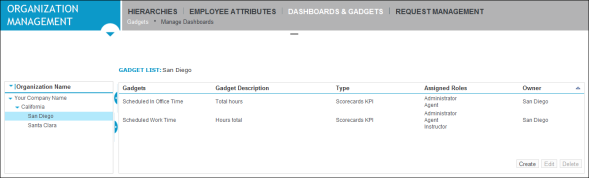
The Gadgets List page is displayed.
For a description of each column, see About the Gadget List page.
-
In the left pane, select an organization.
In the right pane, the gadgets created by this organization are displayed.
-
Click Create.
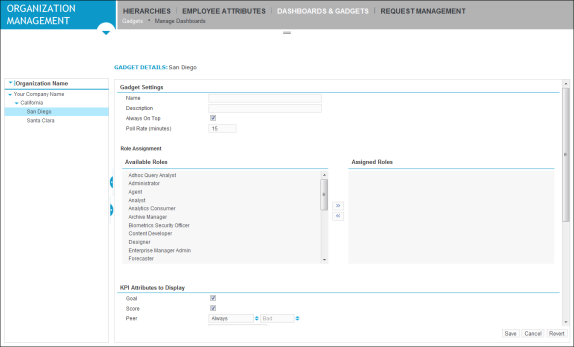
The Gadgets Details page is displayed.
For a description of each field, see the About the Gadget Details page. In the right pane, complete the required fields.
-
Complete the following sections:
-
Gadget Settings
-
Role Assignment
-
KPI Attributes to Display
-
KPIs
-
-
Do one of the following:
-
To save the settings on the page, click Save.
-
To discard your changes, click Cancel.
-
To discard your changes and retrieve the last saved values for this page, click Revert.
-